

Quality Assurance Settings
Bu içerik henüz dilinizde mevcut değil.
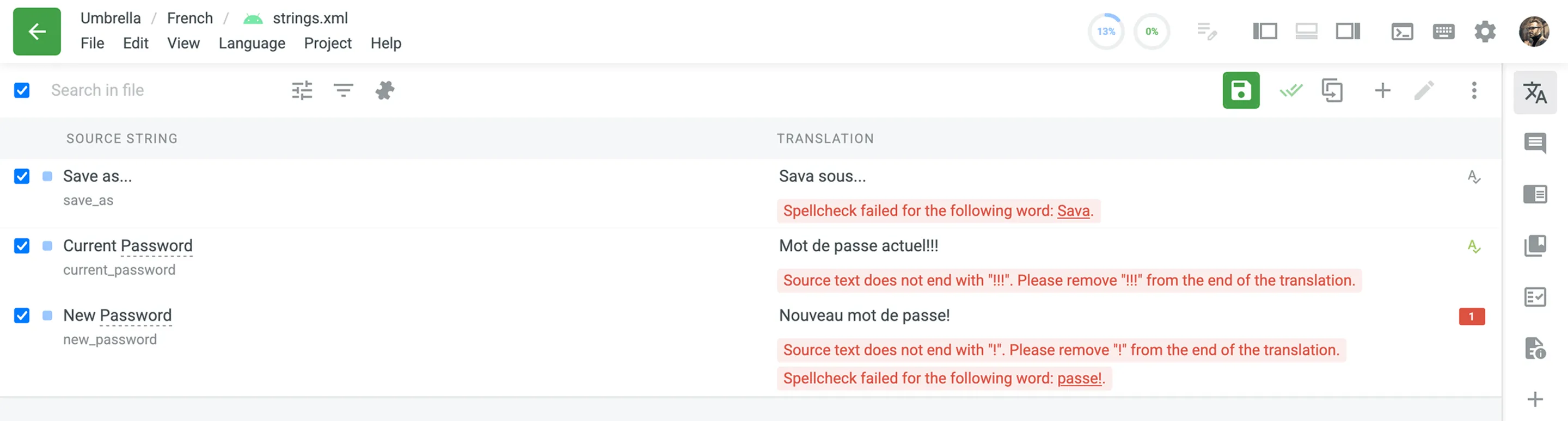
Crowdin’de ÇevirinQuality assurance (QA) checks scan translations for language-specific formatting that doesn’t match the source string or won’t fit the UI. Typical issues are missed commas, extra spaces, and typos.
Crowdin Enterprise highlights the issues it finds on the Proofread workflow step, so review and resolve them before you build the project and download translations.
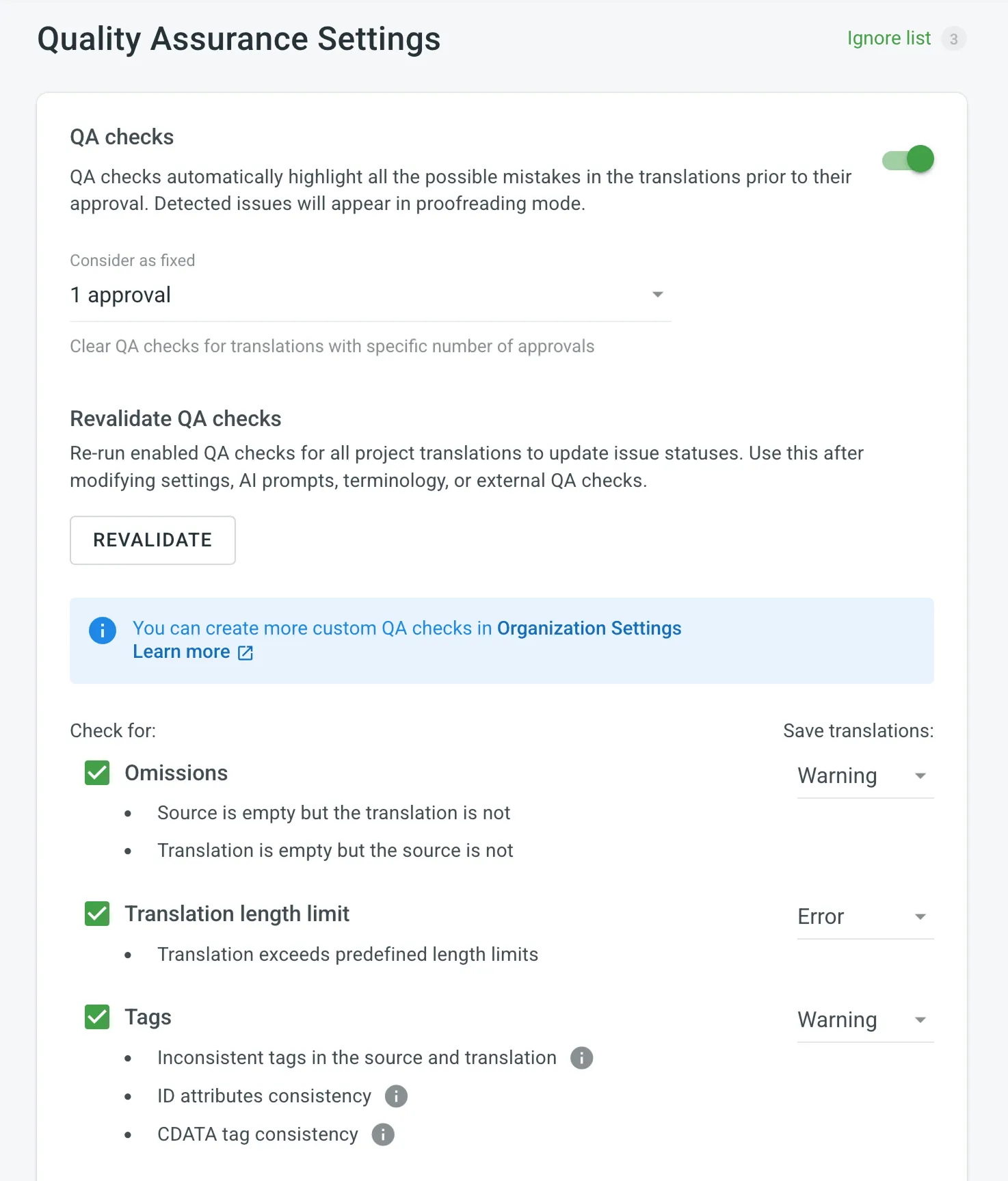
In the Quality Assurance section, you choose which types of QA issues Crowdin Enterprise highlights during translation.
By default, QA checks are enabled. To select the needed QA checks in your project, follow these steps:
- Open your project and go to Settings > Quality assurance.
- Select the QA check types according to your preferences.
- For each selected QA check type, choose whether translations with QA issues can be saved: Error or Warning.
Warning: Translators see the QA issue along with suggestions for fixes and can still save the translation with Save anyway.
Error: Translators see the QA issue along with suggestions for fixes and can save the translation only after resolving it.
A few checks come with a fixed setting:
- Duplicate, FTL Markup syntax check, and MDX Markup syntax check are always enabled and always applied as an Error.
- ICU Markup syntax check is always enabled, and you choose whether it’s applied as an Error or a Warning.
- Spelling mistakes, AI-powered check, and Outdated translation are always applied as a Warning, and you choose whether they’re enabled.
- Custom and external QA checks are always applied as a Warning.
Use the Consider as fixed option to define how many approvals a translation must have before its QA issues are automatically treated as resolved. When a translation reaches the specified number of approvals, Crowdin Enterprise clears any flagged QA issues for that string.
Enabled checks run in the background and scan the translations for potential QA issues.
Use the Revalidate button to re-run enabled QA checks for all project translations and update issue statuses. Use it after you change settings, AI prompts, terminology, or external QA checks.
Once revalidation starts, the button is disabled and a Cancel button appears. Crowdin Enterprise shows a notification when the process is complete.
Omissions: The translation is empty while the source string isn’t, or the source string is empty while the translation isn’t.
- Source is empty but the translation is not
- Translation is empty but the source is not
Translation length limit: The translation is longer than the character limit set for the string.
Tags: The tags in the translation don’t match the ones in the source string.
- Inconsistent tags in the source and translation
- ID attributes consistency
- CDATA tag consistency
Spacing: The spaces in the translation don’t match the ones in the source string.
- Spaces around special symbols
- Start and end newline characters
- Start and end spaces
- Multiple spaces in succession
- Non-breaking spaces
Variables: The placeholders in the translation don’t match the ones in the source string.
- Common variables
- Python, Java, .NET, C/C++, Ruby on Rails, Twig, PHP, Freemaker variable placeholders
- Custom variables (per request)
Punctuation: The punctuation marks in the translation don’t match the ones in the source string.
- Inconsistent punctuation in source and translation
- Spacing before and after punctuation marks
Character case: The character case in the translation doesn’t match the source string.
- Initial capitalization
- Unexpected multiple capitalized characters in succession
Special characters: The special characters in the translation don’t match the ones in the source string.
- Bracket consistency
- Markup language entities
- Quotes and quote escapes
Open translation issues by project members: The translation has an open issue that a project member reported with the Current translation is wrong type, shown on the Proofread workflow step.
Spelling mistakes: The translation contains words that aren’t present in the dictionaries Crowdin Enterprise supports.
ICU Markup syntax check: The translation breaks the ICU message syntax, is missing the other plural form, or uses a different structure than the source string.
Consistent terminology: The translation doesn’t use the glossary term for a source word, or uses a term marked not recommended or obsolete in the glossary.
Duplicate: The translation duplicates an already existing translation.
FTL Markup syntax check: In FTL files, the translation breaks the FTL syntax, or it adds or drops the placeholders and references the source string uses.
Android Markup syntax check: The translation doesn’t keep the placeholder tags (<xliff:g>) that the source string uses.
Numbers mismatch: The numbers in the translation don’t match the ones in the source string or are missing from it.
AI-powered check: The translation doesn’t meet the evaluation criteria defined in your AI prompt. Configure the prompt before you enable the check.
Read more about Configuring AI-powered check.
Outdated translation: The translation predates a change to the source string, so it may need to be revised.
MDX Markup syntax check: In MDX files, a line in the translation starts with import or export. MDX treats such a line as code instead of text.
The spell checker powers the Spelling mistakes QA check for supported languages, and you can manage the words it ignores per project.
Beyond misspelled words, the spell checker flags grammar, punctuation, and capitalization issues for supported languages, though coverage depends on the language.
Spellcheck explanations are shown in the target language you’re translating into, not in your interface language, so they read naturally for that language’s linguists.
If a custom spellchecker is installed for a language, it handles the check for that language instead.
If your project uses uncommon words that the spell checker doesn’t recognize, add them to the Ignore list to exclude them from the check.
This suits project-specific terminology such as brand names or proper nouns (for example, MyApp). The spell checker and the Glossary are separate features, so adding a term to the Glossary doesn’t add it to the Ignore list, and the Ignore list is where you exempt it.
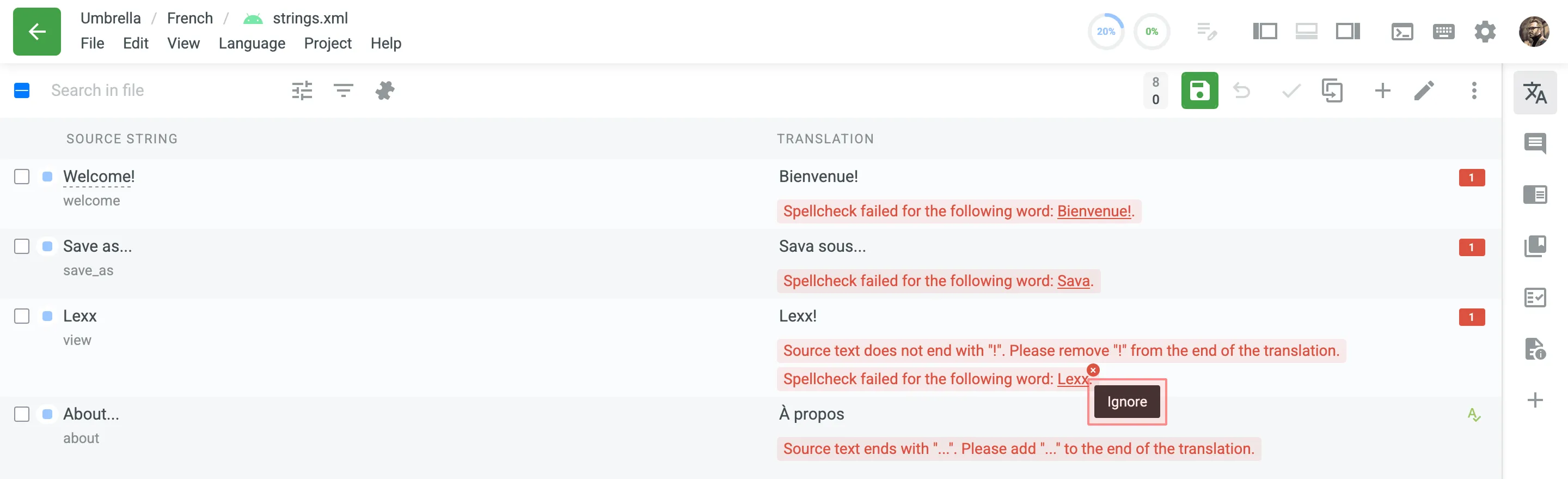
To review the words added to the Ignore list for the spell checker, follow these steps:
- Open your project and go to Settings > Quality assurance.
- Click Ignore list on the top right side.
The dialog that opens lists the ignored words, where you can filter them or remove them from the list.
When QA checks detect issues, indicators appear across the project interface so you can find the strings that need attention.
The project Dashboard and each language page display a summary button with the total number of unresolved QA issues: N QA issues for all languages on the Dashboard, and N QA issues for [Language] on the language page.
Clicking the button opens a panel with the following details:
- The total number of unresolved QA issues.
- The change delta in the format
+N/-N/+N. Hover over it to see the breakdown: how many issues were created, resolved, and are in progress. - Open in Editor: Opens the Editor filtered to strings with QA issues.
- : Links directly to Settings > Quality Assurance.
Languages with unresolved QA issues are marked with a indicator showing the number of issues on the project Dashboard, so you can see at a glance which languages contain them.
Files with unresolved QA issues are marked with a indicator showing the number of issues on the language page.